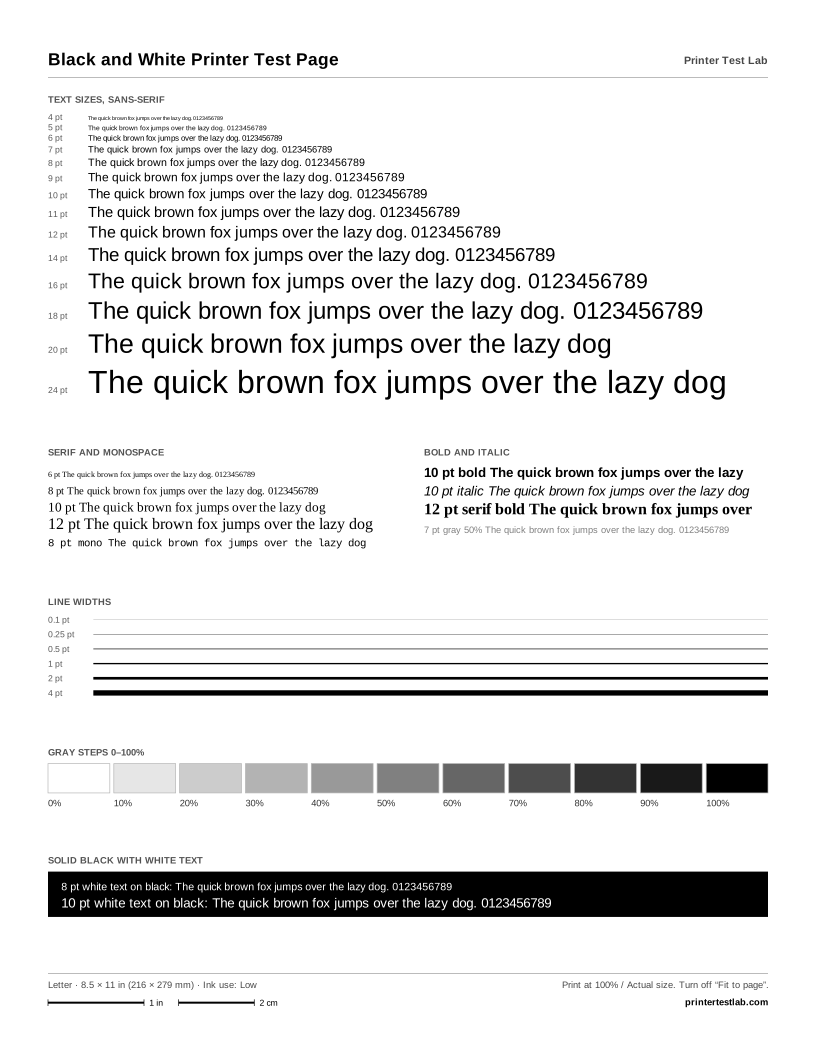
A black and white printer test page focuses on the one ink every printer relies on most: black. Pick one of the four sheets above, print it at 100% scale, and check it against the notes below.
The four black and white sheets
- Black and white text page. Sample text in black from 4 to 24 pt, serif and monospace samples, bold and italic, lines from 0.1 to 4 pt, an eleven-step gray strip and a black bar with white text. It covers about 9% of the page, so it’s cheap to print.
- Grayscale ramp. Twenty-one patches from 0% to 100% black in 5% steps, plus the same steps side by side in one strip.
- Grayscale gradient. A smooth white-to-black gradient with a percentage scale, the light and dark halves stretched out to full width, a reversed bar and a radial gradient.
- Full black page. The entire sheet in solid black. It’s the most demanding test for black ink or toner, and it uses the most.
How to read the text page
Start at the top. Text from 8 pt up should be crisp, with clean edges and open counters in letters like “e” and “a”. At 6 pt and below, some softness is normal, especially on an inkjet, because ink spreads a little in plain paper. Laser printers usually stay sharper at small sizes.
Then check the line widths. Each line should be continuous from end to end. Gaps in a thin line point to missing nozzles on an inkjet; a thin line that looks doubled or fuzzy points to misalignment. The white text in the black bar is a good test too: if the white letters fill in, the printer is putting down too much ink, often because the paper type is set to photo paper while you print on plain paper.
How to read the grayscale pages
On the 5% ramp, each patch should be a little darker than the one before it. Two problems are worth noting. When the lightest patches all look white, the printer is losing highlight detail. When the darkest patches merge into solid black, it is losing shadow detail. A little of both is common; a large block of identical patches is not.
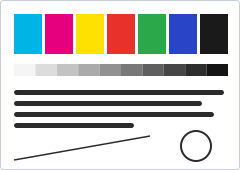

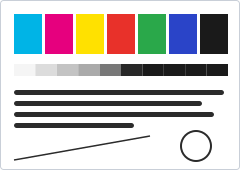
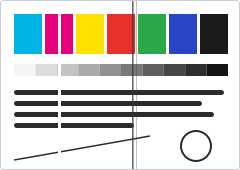
The gradients should look smooth from end to end. Visible stripes inside a gradient are banding, usually from nozzles or a worn laser drum. A sudden jump between two tones is posterization, which often comes from a draft mode or the driver’s color settings. Comparing the stretched light half and dark half tells you which end of the scale is affected.
Black ink versus composite black
Inkjet printers can make black in two ways: with the black cartridge, or by mixing cyan, magenta and yellow into a “composite” black. Composite black often looks slightly brown, green or purple, and it uses three inks instead of one. Printers switch to it when the black cartridge runs out, when it is blocked, or when a high-quality or photo setting asks for richer tones.
To test the black cartridge on its own, choose Grayscale, Black and white or Black ink only in the print dialog, if your driver offers it, and print the text page. Pure black text means the black cartridge works. Colored or missing text means it is empty, still sealed, or blocked. Run one cleaning cycle for black and print again; if that doesn’t help, a black purge sheet puts a lot of black ink through the nozzles at once.
The full black page print test
A full black page shows problems nothing else does. On a laser printer, look for thin white lines running the length of the page, lighter bands, and a gray rather than deep black finish; those point to the toner cartridge, the drum or dirty optics. On an inkjet, look for horizontal light lines and uneven areas. Because the page is covered edge to edge, you’ll also see the unprinted margin your printer always leaves around the paper.
Print it sparingly. It covers about 100% of the sheet, and inkjet paper can curl or stay damp for a while under that much ink.
Saving ink when you print in black and white
For everyday printing, three settings make the biggest difference: select Grayscale or Black ink only so the printer doesn’t mix colors into black, use the Standard quality instead of Best for text documents, and set the paper type to Plain paper. If you only need a quick check that black works, the text page uses little ink.