If your printer prints a test page but nothing else, the hardware is almost certainly fine: it can receive a job, feed paper and put ink or toner on it. Something along the path from your app to the printer is blocking normal jobs. This guide goes through the causes from the most to the least likely, with steps for Windows and Mac, so you can stop at the first one that fixes it.
First, which test page printed?
The fix depends on where the test page came from:
- The printer’s own test or status page, printed from its control panel, proves only the printer works. The problem can be anywhere between your device and the printer, including the connection.
- The Windows or Mac test page, printed from your computer, proves the computer, driver and connection work. If documents still don’t print, the cause is the queue, the printer selected in your app, or the app itself.
If you haven’t printed the computer’s test page yet, do that first: see our guides for Windows and Mac. It tells you which half of the list below to focus on.
Two-minute checks
Before anything else, try these. They solve a surprising share of cases:
- Check the printer selected in the print dialog. Many computers list several printers, including copies of the same one and “Print to PDF” options. Pick the printer you just used for the test page.
- Print from a simple app. Try Notepad on Windows or TextEdit on a Mac. If that works, the problem is limited to one app.
- Restart the printer and the computer. Turn the printer off, unplug it for 30 seconds, then turn it on and restart the computer.
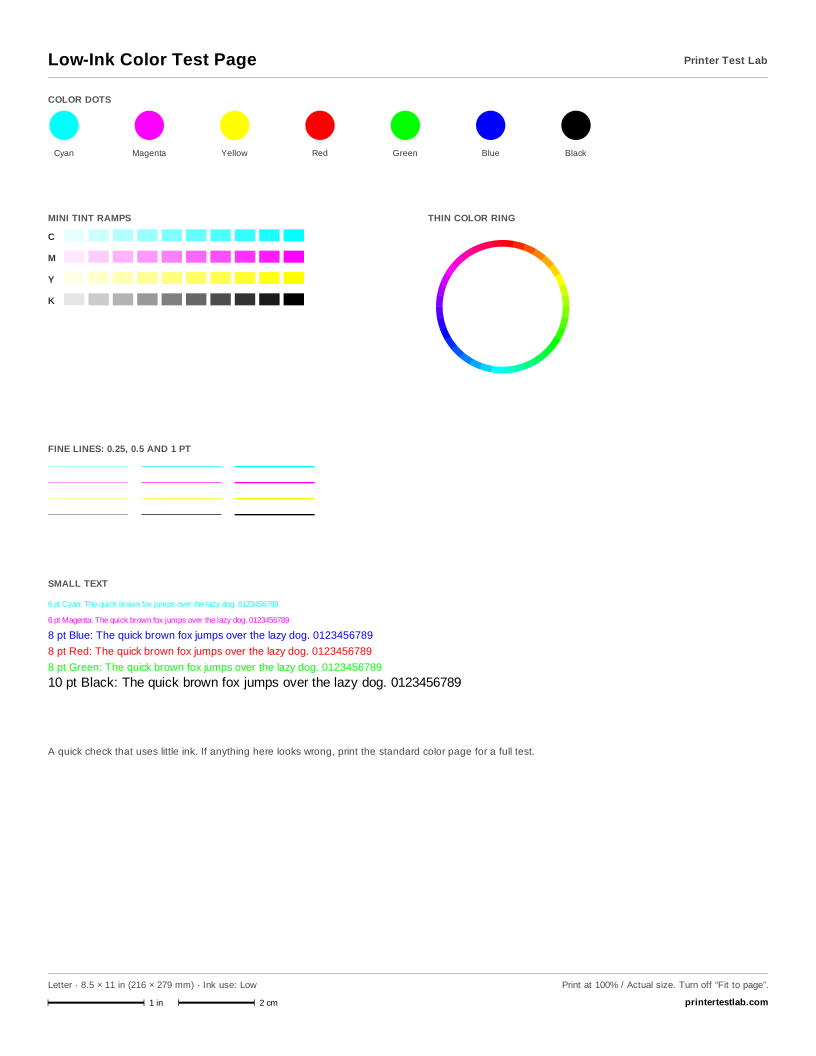
- Print one of our pages. The low-ink test page in the tool above is a quick, cheap document to test with.
1. A stuck or paused print queue
A single job with an error can block everything sent after it, while a test page started from the printer itself goes straight through. This is the most common cause.
On Windows: open Start > Settings > Bluetooth & devices > Printers & scanners, select the printer and choose Open print queue. Cancel the jobs that are stuck; the menu also lets you cancel all of them (Microsoft Support). If jobs won’t cancel, restart the Print Spooler service; as a last resort, stop it, delete the files in C:\Windows\System32\spool\PRINTERS and start it again.
On a Mac: click the Print Center icon in the Dock. If you see a Resume button, the printer is paused: click it. If a job shows an error, select it and click Delete Job; a paused job has a Resume Job button (Apple Support).
2. The wrong default printer
If you print without opening a print dialog, the job goes to the default printer, which may not be the one you think. Windows can switch the default automatically to the printer you used last. To choose it yourself, go to Settings > Bluetooth & devices > Printers & scanners, turn off Let Windows manage my default printer, select your printer and choose Set as default (Microsoft Support). On a Mac, select the printer in Print Center and choose Printer > Use as Default.
3. An offline printer or a changed network address
Network printers get their address from the router. If it changes, the computer keeps sending jobs to the old address and shows the printer as offline, even though a test page printed from the printer itself works fine. Microsoft has a dedicated guide for offline printers in Windows. The steps that help most:
- Make sure the computer and the printer are on the same network, not a guest network or a different band.
- Print the printer’s network configuration page and compare its IP address with the one your computer uses.
- Remove the printer and add it again so the computer finds it at its current address.
- If your router allows it, give the printer a fixed (reserved) address so this doesn’t happen again.
On a Mac, add the printer again with Add Printer, Scanner, or Fax in Printers & Scanners; once the new queue works, delete the old one.
4. A damaged or unsuitable driver
A driver can be good enough for the simple test page and still fail with real documents, especially with large PDFs, photos or certain fonts.
On Windows: remove the printer in Printers & scanners, then install the latest full driver package from the printer maker’s support site and add the printer again (Microsoft Support). HP printer owners can run HP Print and Scan Doctor, which checks the queue, driver and connection automatically.
On a Mac: in Printers & Scanners, click the printer to see the driver version and check the maker’s site for newer software. If the printer’s own software causes the problem, select Options & Supplies > Use Generic Printer Features to turn off its print dialog extensions.
5. One app, or one document
If Notepad or TextEdit prints but one program doesn’t, the cause is in that program:
- Check the printer, paper size and paper source in the app’s own print dialog. A paper size the printer doesn’t have, such as A4 on a Letter-only tray, can hold the job.
- Turn off “Print to file” or similar options if they’re selected.
- Try a simpler document. A very large or damaged file can fail on its own. Printing a single page, or a PDF version of the document, tells you whether it’s the file.
- Update the app. For Office apps, Microsoft has a guide to printing problems in Word, Excel and other apps.
6. Security software and network restrictions
Firewalls, VPNs and some security suites can block the network ports printers use, while a test page printed from the printer itself is unaffected. Disconnect from the VPN and try again. If that works, add an exception for the printer in your security software, or print without the VPN connected.
If the test page doesn’t print either
If nothing prints from the computer, not even the system test page, the problem is the connection or the driver rather than one app. Work through the troubleshooting sections of our Windows and Mac guides. If even the printer’s own control panel page fails, the printer itself needs attention: check paper, ink or toner and any error message, then see your maker’s page for HP, Epson, Canon or Brother.
When documents print but look wrong
Once documents come out again, check their quality. Print the color printer test page and compare it with the examples on the page. Banding, missing colors, blur and marks all have specific causes, and the printer problem diagnosis tool walks you to the fix.