A Canon printer test page usually refers to the nozzle check pattern, a small sheet of lines and blocks that Canon inkjets print to show whether the print head is working. Below you’ll find how to print it on PIXMA and MegaTank models, how Canon tells you to read it, the cleaning steps that follow, and the sheets that complement it.
Before you print the nozzle check
Canon’s checklist is short and worth following, because it rules out the most common causes before you use any ink on cleaning (Canon Support):
- Ink level. If the remaining ink is low, the pattern won’t print correctly.
- Seating. Each cartridge or ink tank should be pushed in fully, in the right position.
- Orange tape. New cartridges and tanks have orange protective tape that blocks ink if it’s left on.
- Paper. Load one sheet of plain Letter or A4 paper in the tray your model uses for it.
Print the nozzle check pattern
From the printer
How you start it depends on the control panel. On models with only buttons, you hold the Stop button until the Alarm lamp flashes and then release it. The number of flashes differs: once on models such as the MG3000 series, twice on models such as the G1220 (Canon Support). On models with a screen, the nozzle check is in the menus, for example Setup > Maintenance > Nozzle check on the TR4720 (Canon Support). Check your model’s online manual for the exact steps.
From Windows
Open the Canon IJ Printer Assistant Tool, choose Nozzle Check, read through the initial check items, load paper, and select Print Check Pattern (Canon Support). If the printout looks normal, click Exit. If it has smudges or gaps, click Cleaning.
From a Mac
Open the Canon IJ Printer Utility, choose Test Print from the pop-up menu, click the Nozzle Check icon, and then Print Check Pattern (Canon manual). As on Windows, the utility offers Cleaning when the pattern shows problems.
How to read the Canon pattern
Canon’s nozzle check has two parts, which its manuals call pattern A and pattern B. Canon’s instruction is to look for missing lines in pattern A and horizontal streaks in pattern B (Canon manual). Either one means some nozzles aren’t firing properly and the print head needs cleaning. The exact layout of the pattern differs between models, so your printer’s manual shows an example of a good and a bad result.
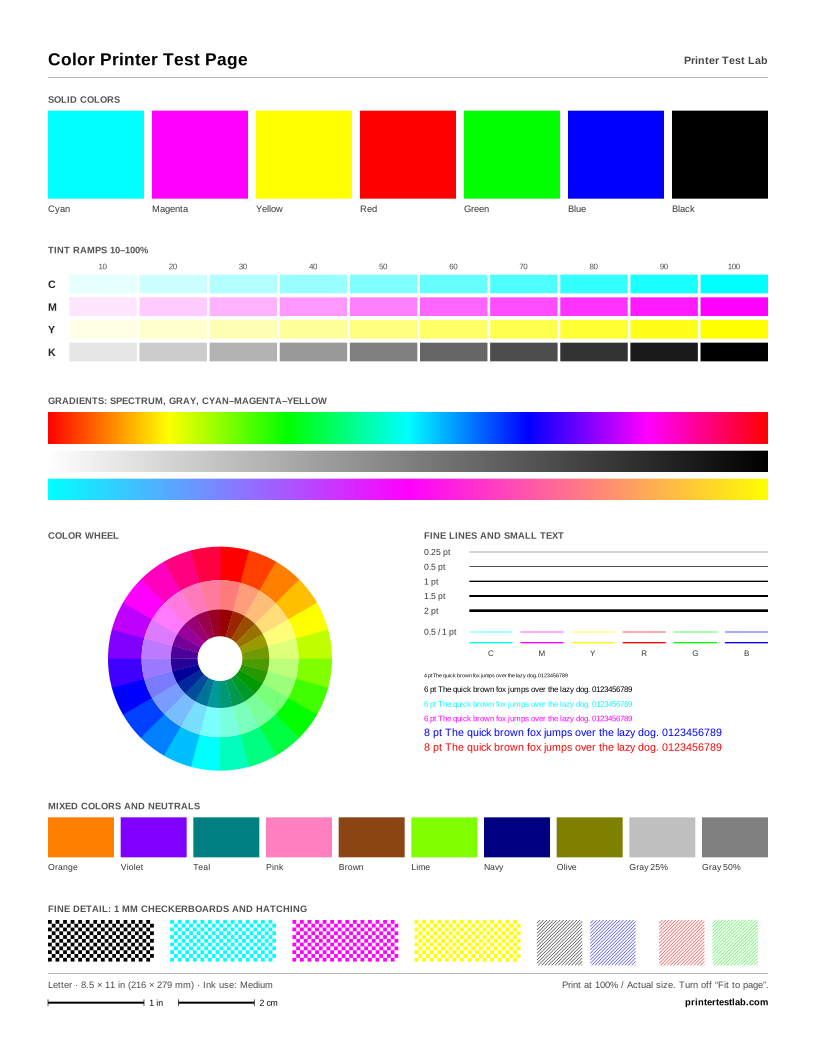
Compare the result with your actual prints. If the nozzle check is perfect but your documents still look wrong, the cause is more likely a setting, paper type or alignment. Print our color test page or black and white test page to see more than the nozzle check shows.
Cleaning, deep cleaning and what comes next
Canon’s manuals describe an escalation path (Canon manual):
- Cleaning. Run it from the printer or the utility, then print the nozzle check again.
- Deep Cleaning. If two regular cleanings don’t solve it, run a deep cleaning, which uses more ink.
- Rest. If deep cleaning doesn’t help, turn the printer off for 24 hours, then run deep cleaning again.
- System cleaning or ink flush. Some models, especially MegaTank printers, offer a stronger procedure as a last step.
- Service. If nothing works, the ink may be empty or the print head worn, and Canon support can advise.
Between cleanings, a purge sheet for the affected color is a gentler option. It fires that color’s nozzles onto plain paper, and you can print just one color.
PIXMA cartridges and MegaTank printers
Many PIXMA printers use cartridges with the print head built in, so a new cartridge also brings new nozzles. If one color stays missing after cleaning, a fresh cartridge is often the quickest fix. MegaTank (G series) printers have refillable tanks and a separate print head, so cleaning, rest and the steps above matter more, and replacing the head is a bigger decision.
If your Canon printer sits unused for long periods, print the low-ink color page about once a week. It uses little ink and keeps every color moving.
Which of our sheets to print on a Canon
| You want to check | Print this |
|---|---|
| All inks, tints and gradients | Color printer test page |
| Black text and small type | Black and white test page |
| Gaps before and after cleaning | Nozzle pattern (in the tool above) |
| A color that stays faint | Single color page, then a purge sheet for that color |
| Print size and scaling | Scale ruler page on the home page tool |
All sheets are also free PDFs on the printer test page PDF page. For the plain driver test page, see our guides for Windows and Mac.
Frequently asked questions
How do I print a test page on a Canon printer?
Why won't my Canon nozzle check print correctly?
What is the difference between Cleaning and Deep Cleaning?
Do your test pages work on Canon printers?
Printer Test Lab is not affiliated with HP, Epson, Canon, Brother or any printer manufacturer. All trademarks belong to their owners. Menu names and steps come from each maker's public support pages and can differ between models.