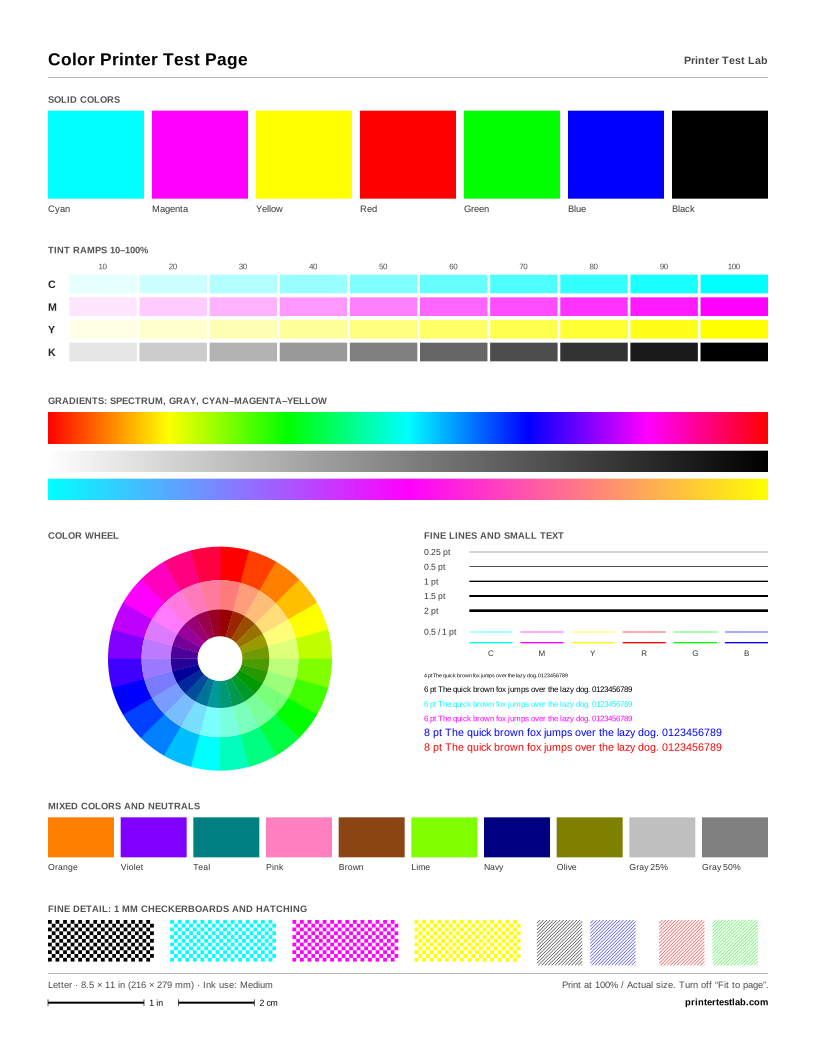
An Epson printer test page is, first of all, the nozzle check: a pattern of fine lines in each ink that shows at a glance whether every nozzle is firing. This page explains how to print it on Epson inkjet and EcoTank printers, how to read it, what to do when it shows gaps, and which of our sheets help you check the rest.
Print an Epson nozzle check
From the printer’s control panel
On Epson printers with a screen, the nozzle check is in the maintenance menu. On many current models you select Maintenance > Print Head Nozzle Check from the home screen, load plain paper and start the print (Epson Support). After the pattern prints, the screen asks whether it looks right and offers cleaning if it doesn’t.
Models without a screen start the nozzle check with a button combination instead. It varies by model, so look it up in your printer’s user guide on Epson’s support site.
From Windows
With current Epson drivers, right-click the Epson printer icon in the Windows taskbar (click the up arrow if it’s hidden), choose Nozzle Check or Print Head Nozzle Check, and click Print (Epson Support). On older drivers, the same tools are on the Maintenance tab of the printer settings.
From a Mac
Open System Settings, select Printers & Scanners, select your Epson printer, then Options & Supplies. Choose Utility, then Open Printer Utility, and select Nozzle Check or Print Head Nozzle Check (Epson Support). The same utility runs head cleaning.
How to read the nozzle check pattern
The pattern has one block per ink. Each block is a staircase of short lines, printed by different groups of nozzles. Look at it in good light:
- Every line present: the nozzles for that color are fine.
- Missing or broken segments: some nozzles in that color are clogged. The more segments missing, the more serious the blockage.
- A faint or missing block: that ink may be low or empty, or the nozzles are badly blocked. Check the ink level first.
- Lines that bend or overlap: a nozzle is firing at an angle, which usually clears with cleaning.
Our own nozzle pattern test page uses the same idea with horizontal, vertical and diagonal hairlines. It can’t fire individual nozzles the way Epson’s built-in check does, but it’s useful for comparing before and after.
Cleaning, power cleaning and when to stop
When the nozzle check shows gaps, run a head cleaning from the same menu or utility, then print the nozzle check again. Each cleaning uses ink, so don’t run them back to back. For the models we checked, Epson’s guidance is to run the nozzle check and cleaning up to three times, or a Power Cleaning once if almost the whole pattern is missing, then turn the printer off and wait at least 12 hours before checking again (Epson Support). If that doesn’t help, some models offer a stronger ink flushing procedure, and after that Epson recommends contacting support.
The ink used by cleaning cycles ends up in the printer’s maintenance box or waste ink pad. Epson describes its maintenance boxes as storing the ink flushed during print head cleaning. A purge sheet is a useful in-between step: it fires the nozzles of one color, or all of them, onto plain paper.
Epson EcoTank printers
EcoTank models use refillable ink tanks instead of cartridges. When a new EcoTank is set up, the first ink charge has to fill the tubes and print head, which takes a while; follow the setup guide and let it finish before you judge print quality. After that, the nozzle check works the same way as on cartridge models.
Many EcoTank printers are also used with sublimation ink. Sublimation printing often happens in bursts, so nozzles can dry between jobs. A sublimation purge sheet on plain paper once or twice a week keeps ink moving without using cleaning cycles.
Which of our sheets to print on an Epson
| What you want to check | Print this |
|---|---|
| All inks, tints and gradients | Color printer test page |
| One ink that looks weak | Single color page for that ink, in the color tool |
| Black text and grays | Black and white test page |
| Gaps after an idle period | Nozzle pattern, then a CMYK or single-color purge sheet |
| Sublimation printer between jobs | Sublimation purge sheet |
You can print all of them from the tool above or download them as PDFs on the printer test page PDF page. To print the plain Windows or Mac driver test page on your Epson, see the guides for Windows and Mac.
Frequently asked questions
How do I print a test page on an Epson printer?
What does a good Epson nozzle check look like?
How many times should I clean an Epson print head?
Can I use a purge sheet on an Epson EcoTank used for sublimation?
Printer Test Lab is not affiliated with HP, Epson, Canon, Brother or any printer manufacturer. All trademarks belong to their owners. Menu names and steps come from each maker's public support pages and can differ between models.