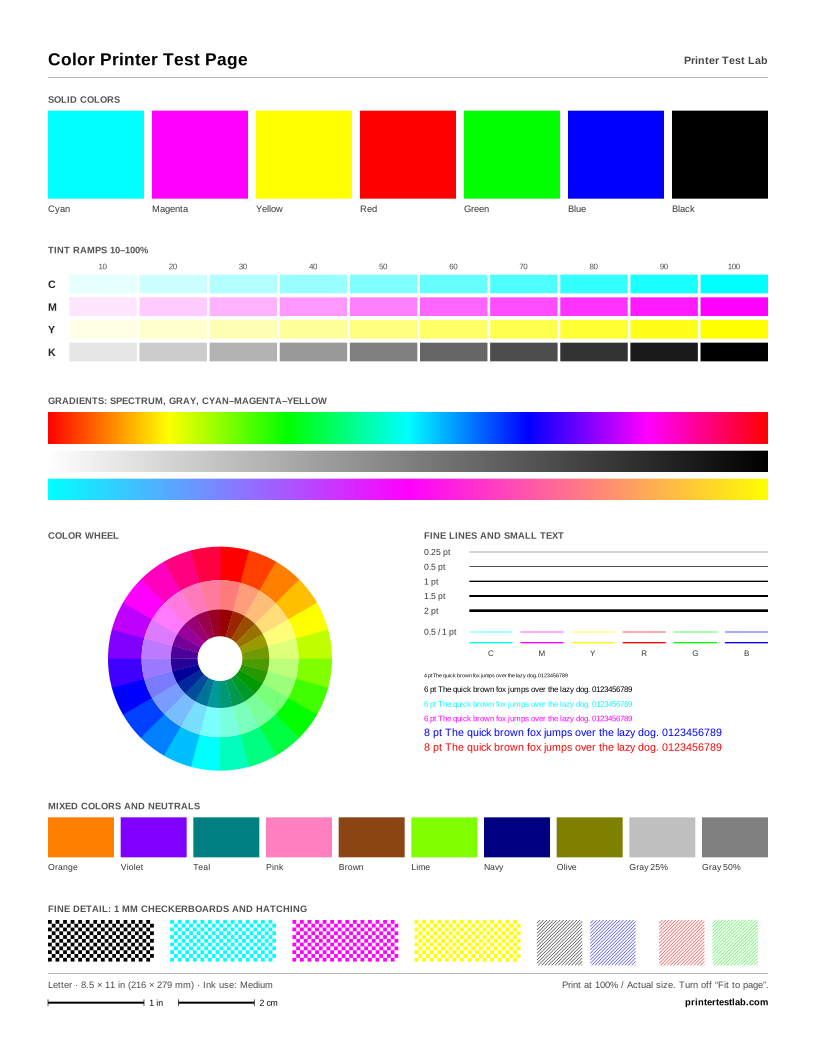
An HP printer test page can mean several things: one of the reports HP printers print themselves, the Windows or Mac test page, or a full quality test sheet like the ones above. This page explains how to print HP’s own pages on inkjet and LaserJet models, what each one tells you, and which of our sheets to use when you need more detail.
HP’s built-in test pages
HP printers can print self-test pages without a computer. The two you’ll use most are listed on HP’s support pages for each model, for example for the Smart Tank 520 and 540:
- Printer Status Report. Model, serial number, firmware, settings and estimated ink levels. Useful when HP Support asks for printer details.
- Print Quality Diagnostic Page (called a Print Quality Report on some models). Color blocks, lines and patterns that show whether each ink prints and whether the printhead is aligned.
Wireless and network models can usually print a network or wireless report as well, with the network name, IP address and connection status. Its exact name varies by model, so look for it in the same Reports menu.
HP LaserJet and other office printers add a Configuration Page and a Supplies Status Page, which shows the approximate remaining life of the toner and other supplies (HP Support).
How to print a test page on an HP printer
From the printer’s control panel
On HP printers with a touchscreen, the reports are in a menu. Depending on the model, you’ll find them under Setup, Tools or a Reports item, where you choose Printer Status Report or Print Quality Report. On some HP Smart Tank touchscreen models the path is Menu > Tools > Reports.
HP printers without a screen use button combinations instead, such as holding a specific button for a few seconds. These combinations differ from one model to the next, and HP lists them on each model’s “printing reports and self-test pages” support page. Search HP Support for your exact model before you start pressing buttons.
From the HP app
HP’s own app, which HP’s current support pages simply call the HP app, includes print quality tools. Open it, click the image of your printer, and under Diagnostics or Tools choose Print quality tools. From there you can clean the printhead, which HP recommends doing from the app, or align the printheads. On some models the alignment page asks you to scan it to finish (HP Support).
From your computer
Windows prints a driver test page that proves the computer can reach the HP printer: Start > Settings > Bluetooth & devices > Printers & scanners, select the printer, Printer properties, then Print Test Page on the General tab. Our Windows test page guide covers Windows 10 too. On a Mac, open Print Center, select the printer and choose Printer > Print Test Page, as explained in our Mac guide.
When the HP printer won’t print at all
On Windows, HP’s free HP Print and Scan Doctor checks the connection, the driver and the print queue, and fixes common problems such as an offline printer or stuck jobs. On a Mac, HP points you to the diagnose and fix feature in its app instead.
Reading an HP print quality report
The print quality report is the most useful HP page for spotting problems. Check it in good light:
- Color blocks. Each block should be solid and even. Thin white lines mean clogged printhead nozzles; a missing or very pale block means that ink is empty or not reaching the printhead.
- Lines and alignment patterns. Straight, sharp lines mean the printhead is aligned. Jagged or doubled lines mean an alignment is due.
- Black text and lines. Faint or broken black usually means the black cartridge or tank is low, or its nozzles are blocked.
HP’s usual fix order is cleaning the printhead first, then aligning it, and replacing a cartridge only if the problem stays. HP also recommends genuine HP ink, noting that cleaning and alignment may not fix problems caused by other inks.
HP LaserJet printers
LaserJets rarely need nozzle care, but they have their own typical faults: repeating marks from the drum or rollers, streaks, gray backgrounds and faded print as toner runs low. Print the Supplies Status Page to see the toner level first, then our laser printer test page. Its even gray field and rulers let you measure the distance between repeated marks, which you can compare with the repetitive defect information in your LaserJet’s user guide. On color LaserJets, the color laser sheet shows each toner on its own.
Which of our sheets complement HP’s pages
HP’s reports confirm that the printer works and give a quick quality snapshot. Our sheets go into more detail:
| You want to check | HP page | Our sheet |
|---|---|---|
| Every ink, tints and gradients | Print Quality Report | Color printer test page |
| Black text, small type and grays | Print Quality Report | Black and white test page |
| Clogged nozzles on an inkjet | Print Quality Report | Nozzle pattern (in the tool above) |
| LaserJet repeating marks and streaks | Configuration and supplies pages | Laser printer test page |
| Print size and scaling | – | Scale ruler page on the home page tool |
All of them are free PDFs as well, in Letter and A4, on the printer test page PDF page. If you’re not sure what a result means, the printer problem diagnosis tool walks you through it.
Frequently asked questions
How do I print a test page on an HP printer without a computer?
Which HP report should I print to check ink and print quality?
My HP report prints fine but nothing prints from my computer. Why?
Is there an HP printer test page PDF?
Printer Test Lab is not affiliated with HP, Epson, Canon, Brother or any printer manufacturer. All trademarks belong to their owners. Menu names and steps come from each maker's public support pages and can differ between models.