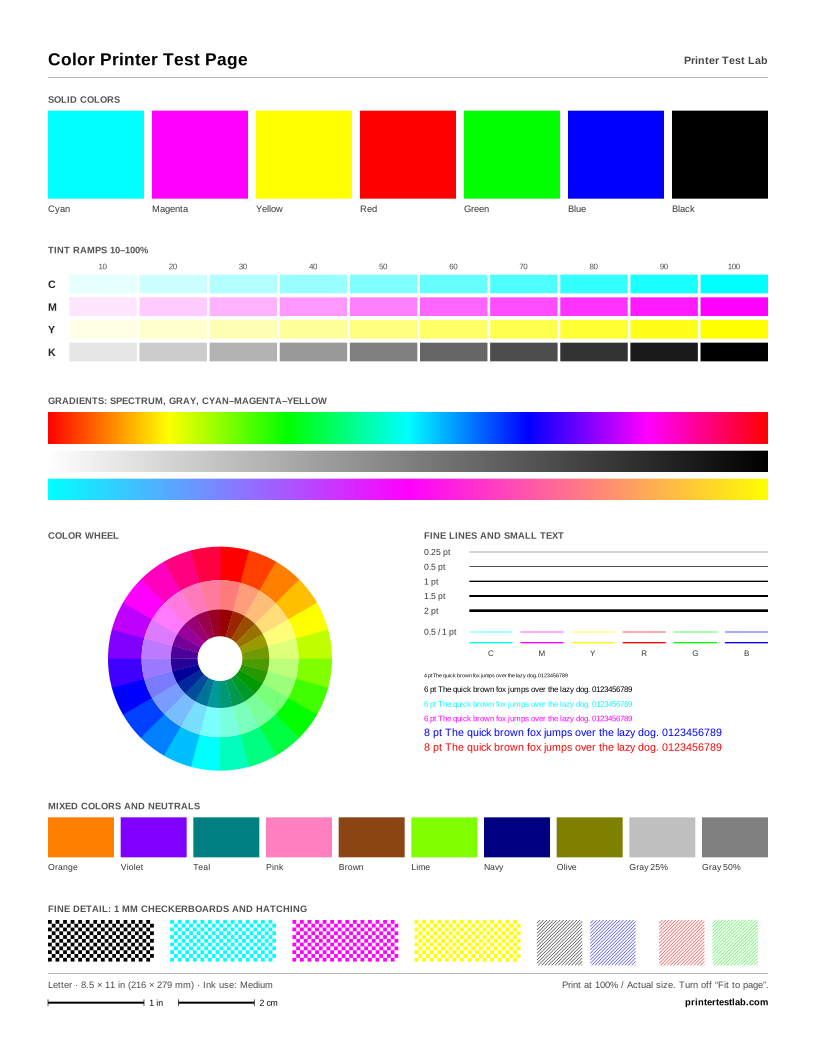
A color printer test page puts every ink your printer uses on one sheet, so you can see which colors print cleanly and which ones don’t. Choose a sheet above, print it at 100% scale on plain paper, and read it with the guide below.
How to read the standard color test page
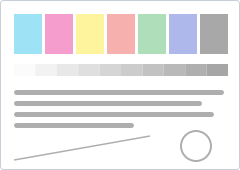
The standard sheet is split into sections, and each one tests something different.
Solid colors
The seven large swatches are cyan, magenta, yellow, red, green, blue and black. Each one should be even from edge to edge. White lines across a swatch mean clogged nozzles. A swatch that is lighter at one end can point to low ink. If the red swatch looks pink, yellow is weak; if green looks blue, yellow is weak again; if blue looks purple, cyan is the problem.
Tint ramps
Each row runs from 10% to 100% of one ink. You should see ten distinct steps that get stronger from left to right. When the first steps vanish into white, the printer is dropping light tones. When the last steps look identical, it has reached its maximum density early. Both are common with low-quality modes, so test at the standard setting.
Gradients
The spectrum, the gray bar and the cyan–magenta–yellow bar should look smooth. Visible stripes inside a gradient are banding; a sudden jump in color is posterizing, which is usually a driver or quality setting rather than hardware.
Color wheel
The outer ring shows saturated hues, the middle ring light tints and the inner ring dark shades. Look for one part of the wheel that looks dull or muddy compared with the rest. That pattern tells you which ink is underperforming more clearly than any single swatch.
Fine lines, small text and fine detail
Hairlines from 0.25 to 2 pt, small text in several colors and 1 mm checkerboards test sharpness and alignment. Lines should be continuous and text readable down to 6 pt. Doubled or fuzzy edges mean the print head needs alignment. Checkerboards that blur into a flat color show the limit of your printer’s resolution on that paper.
CMYK vs. RGB: what your printer actually receives
Screens and browsers work in RGB, red, green and blue light. Printers work in ink, usually cyan, magenta, yellow and black (CMYK). When you print from a browser, it sends RGB data and the printer driver converts it into ink. That conversion is why some vivid screen colors look duller on paper. It’s normal and not a fault.
The CMYK swatches you see on screen are approximations for that reason. Our CMYK test page PDF goes one step further and stores real CMYK values, so printers, RIP software and print shops that work in CMYK receive exact ink percentages. Even then, a typical home inkjet driver still makes its own decisions about how much of each ink to lay down. Use the CMYK page to compare channels, not as a color-accurate proof.
Single color pages: test one ink at a time
When one color seems weak, a single color page isolates it. The card labeled Single color above lets you choose cyan, magenta, yellow, black, red, green or blue. Each page has a large solid block, ten tints, a gradient, line widths, hatching and text, all in that one color.
The cyan, magenta, yellow and black pages are built from one CMYK ink each, so they’re the best way to check a single cartridge. The red, green and blue pages are mixes of two inks; they show whether those inks combine evenly.
A yellow printer test page deserves a special mention. Yellow is so light that a failing yellow channel often goes unnoticed on mixed pages. Printing it alone, and checking it in daylight, settles the question.
Printers with four inks are tested completely by the CMYK pages. Printers with six or more inks, such as photo models with light cyan and light magenta, use the extra inks for pale tones. You can’t select those cartridges from a web page, but the 10–40% tints on the standard sheet are where they show up.
What color problems look like
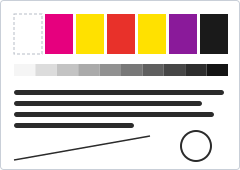
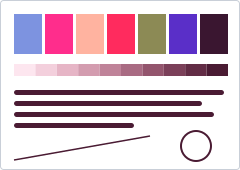
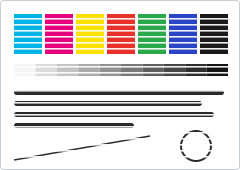
A missing color almost always comes down to one cartridge: empty, not seated, still sealed, or with blocked nozzles. A color cast, where everything leans toward one hue, usually means one channel is weak while the others print normally; check that ink and run one cleaning cycle. Banding in only one color confirms clogged nozzles for that ink, while banding in all colors can also come from a paper feed problem. Faded prints across the board point to a draft or “ink saver” setting, the wrong paper type selected in the driver, or several inks running low together.
For a step-by-step answer, use the printer problem diagnosis tool. If one channel stays faint after a cleaning, a purge sheet for that color pushes more ink through the nozzles than a test page does.
The colorful test page and the low-ink check
Sometimes you just want to see your printer at its best. The colorful printer test page is an original illustration with a sky gradient, a rainbow, striped balloons and a hillside village. It’s fun to print, kids like it, and it’s surprisingly good at showing problems: the sky reveals banding, the rainbow shows each hue, and the small houses test fine edges. It covers about 46% of the page, so keep it for occasional checks.
For routine use, the low-ink color test page prints small dots, thin ramps and short lines in every color. It covers only about 3% of the sheet, which makes it a good weekly print to keep an inkjet’s nozzles from drying out.
A simple routine for inkjet printers
An inkjet printer test page is most useful when you print the same one at the right moments:
- After installing a cartridge, print the standard color page to confirm the new ink flows and is in the right slot.
- When a printer has been idle for a week or more, print the low-ink page. If it shows gaps, run one cleaning cycle and print it again.
- After a cleaning or alignment, print the single color page for the ink you worked on, so you can compare like with like.
- Before an important print job, a quick standard page saves you a wasted sheet of photo paper.
Searching for a “test page for colour printer”? You’re in the right place: colour is just the British spelling, and every sheet here also comes in A4.