A Brother printer test page depends on the type of printer. Brother inkjets print a Print Quality Check Sheet that shows each ink, while Brother laser printers print a Test Print and a Printer Settings page. Here’s how to print each one, how to read it, and which of our sheets to print when you need more detail.
Brother inkjet printers: the Print Quality Check Sheet
On many Brother inkjets and inkjet all-in-ones, the check sheet is one menu away. Press Ink > Improve Print Quality > Check Print Quality, or on some models Settings > Maintenance > Improve Print Quality > Check Print Quality, and follow the on-screen prompts (Brother Support).
The sheet shows four color blocks. Look closely at each one:
- Solid, even blocks with no white lines mean the nozzles for that color are fine.
- Missing lines or gaps mean some nozzles are clogged. When the screen asks whether the quality is OK, answer No for that color, and the printer cleans the print head.
Brother’s guidance is to repeat the check and cleaning up to five times if needed. If the sheet still shows problems, Brother suggests installing a new genuine cartridge for the problem color, and then contacting customer service (Brother Support). If the check sheet looks fine but your prints don’t, check the paper type setting and try the paper Brother recommends for your model.
Brother laser printers: Test Print and Printer Settings
On models with a display
Brother laser printers with an LCD have a Test Print option. On some models it’s under Machine Info > Test Print; on newer models the path is Settings > All Settings > Printer > Print Options > Test Print, where you confirm with Yes (Brother Support). Most models with a display also print a Printer Settings report that lists the configuration and page count.
On models with only a Go button
Simpler Brother lasers have no menu. On those, you turn the printer off, hold down the Go button while you turn it on, wait for the Toner, Drum and Paper lights, release the button and press Go again to print the test page. On some of these models, pressing Go three times quickly prints the printer settings page instead (Brother Support). The exact light sequence varies, so follow the article for your model.
From your computer
The Windows and Mac test pages prove that your computer can talk to the Brother printer. In Windows, select Start > Settings > Bluetooth & devices > Printers & scanners, choose the printer, then Printer properties and Print Test Page. On a Mac, open Print Center, select the printer and choose Printer > Print Test Page. Our guides for Windows and Mac explain both, and what to do if they fail.
If the Brother Test Print works from the control panel but documents don’t print from your computer, the printer is fine. The problem is the driver, the queue or the connection: see printer prints a test page but nothing else.
Repeated marks and drum cleaning on Brother lasers
Brother laser printers use a toner cartridge and, on most models, a separate drum unit. When dots or marks repeat at the same distance down the page, the spacing tells you which of the two is involved. Brother publishes the spacing for its models in its support articles and explains how to clean the drum when something is stuck to it (Brother Support). The values differ by model, so use the article for yours.
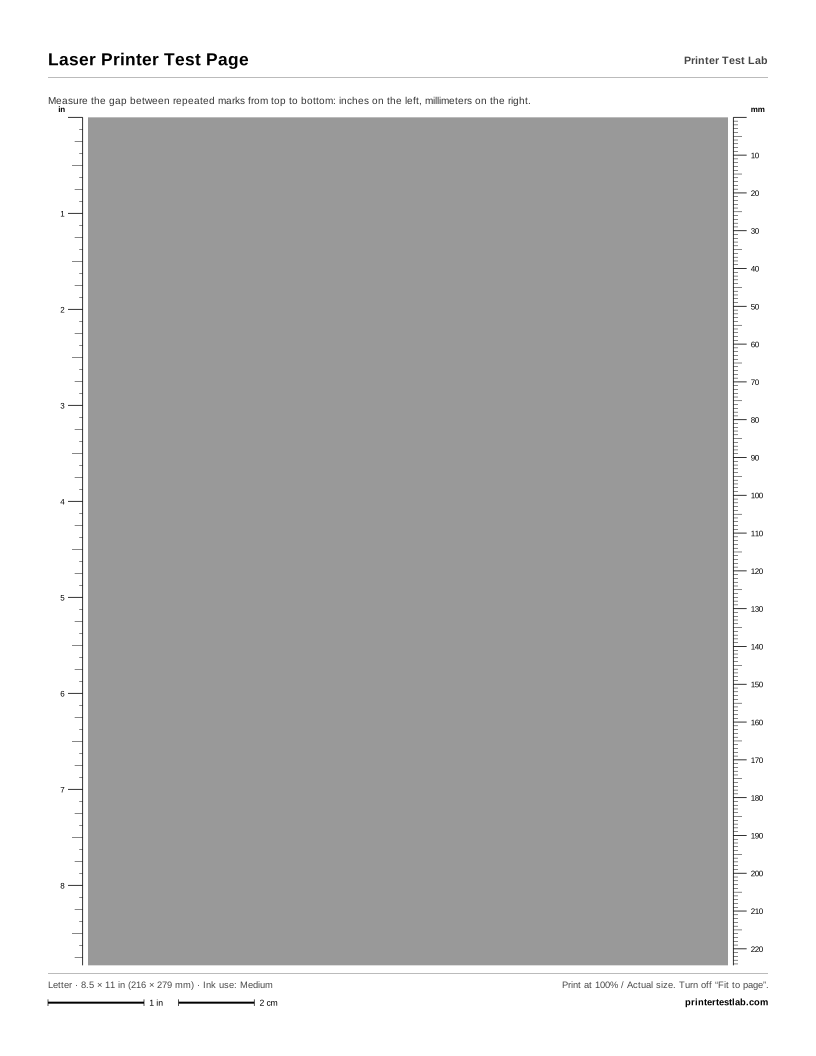
To measure the spacing, print our laser printer test page. Its even 40% gray field shows marks clearly, and the millimeter ruler along the edge makes measuring easy. Many Brother drum units also have a small slider for cleaning the corona wire, which helps with vertical streaks; your manual shows where it is and how to use it.
Which of our sheets to print on a Brother
| What you want to check | Print this |
|---|---|
| Repeated marks, streaks, gray haze (laser) | 40% gray field with rulers |
| Faded or smeared toner | Laser text page |
| Black text, small sizes and grays | Black and white test page |
| All inks on a Brother inkjet | Color printer test page |
| Nozzle gaps on a Brother inkjet | Nozzle pattern (in the tool above) |
Every sheet is a free PDF too, on the printer test page PDF page. If the result isn’t clear, the printer problem diagnosis tool helps you work out the cause.
Frequently asked questions
How do I print a test page on a Brother laser printer?
How do I print a test page on a Brother inkjet?
My Brother printer leaves dots at the same distance down the page. What is it?
Can I print a Brother test page from my computer?
Printer Test Lab is not affiliated with HP, Epson, Canon, Brother or any printer manufacturer. All trademarks belong to their owners. Menu names and steps come from each maker's public support pages and can differ between models.